Showing posts with label communication. Show all posts

Thursday, March 24, 2011

Tool Availability in Blackboard

So you just left the department meeting and everyone is RAVING about the new features in Blackboard 9.1 (check here for tutorials).  You immediately rush to http://udc.blackboard.com to login, but you don’t see the tools they were talking about:(
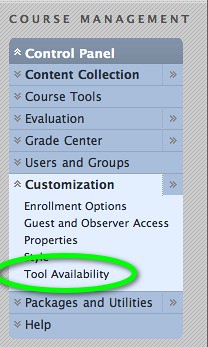
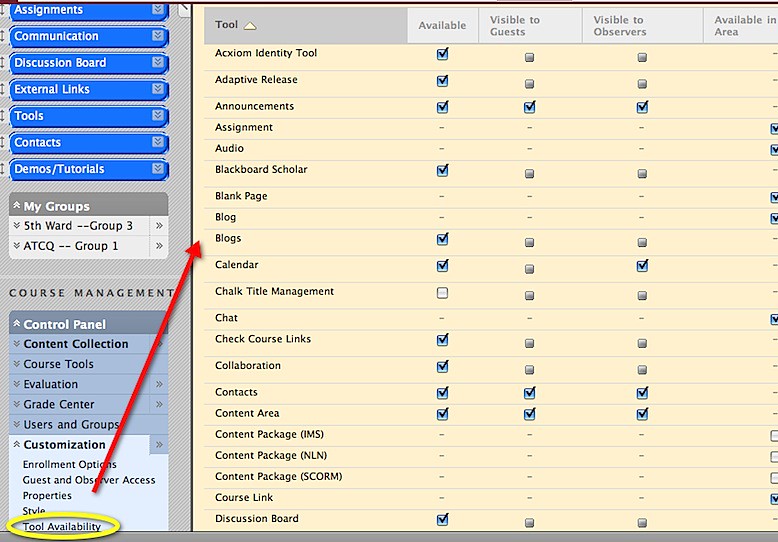
To remedy this, go to the *CUSTOMIZATION* menu under the CONTROL PANEL and select TOOL AVAILABILITY. 
You will see the following page and will have the opportunity to select or deselect items.


t3.jpgTo access the tools, click on *TOOLS* in your menu. 
t2.jpgIf you don't see a tool...go back back to TOOL AVAILABILITY. Be sure to SAVE your options before clicking on another menu item.
t4.jpg
For more information on Blackboard tools, see the annotated User Manual.

Tuesday, March 15, 2011

Ask the Center for Academic Technology

Have a technology question?

Technology suggestion for the university?

Maybe kudos or just sharing your experience from a workshop or employing education technology in the classroom.

Use this form to ask the Center for Academic Technology a question or leave a comment.  We would LOVE to hear from you!

Tuesday, March 1, 2011

Subscribing to the Center for Academic Technology Blog Using Outlook

This tutorial will show you how to subscribe to the Center for Academic Technology blog [cat-udc.blogspot.com] using Microsoft Outlook. We will employ a technology called RSS [Really Simple Syndication]. This will send new blog posts (usually 3 per week) to your inbox, just like email.
You can view a PDF version of this document here: http://scr.bi/cntPhg

Select the RSS Feeds option in Outlook

media_1288288096862.png
Select the option "RSS Feeds"

Option 1: Right Click on the RSS FEEDS option

media_1288286681012.png
A 'right-click' is when you click the 'other' mouse button, or the one on the 'right'. Then click on the option "Add a New RSS Feed..."

Option 2: Use the Menu Bar to Select the Option

media_1288286818509.png
Once you select RSS Feeds, go to the menu bar under FILE, select FOLDER, then "Add a New RSS Feed..."

Add the RSS Feed

media_1288287632517.png
Enter the following URL: http://cat-udc.blogspot.com/feeds/posts/default?alt=rss. This points to the RSS feed for the blog.

The Perfunctory Warning Box

media_1288287679628.png
Click YES

VoilĂ ! -- It's DONE

media_1288287739456.png
For more on RSS feeds and Microsoft Outlook, visit this link: http://bit.ly/ayms6d.
Once you access the blog, PLEASE LEAVE COMMENTS!

Thursday, February 24, 2011

Visualization Tools for the Classroom

The ability to communicate digitally is becoming a much sought after skill.  For the last couple of years, I've facilitated a workshop called "Intro to Visual Communication" which explores ways to use Web tools to convey information to students.  See the slides below:


Adobe, undoubtedly looking to sell some product, recently released a white paper (free registration required) on the evolution and impact of digital communication skill development in post-secondary education.  The report discusses the United States National Technology Plan , the International Society of Technology in Education's National Educational Technology Standards, and models and technology initiatives from across the world.   


From the introduction:

This paper explores the evolution of digital communication skills development in post-secondary educational institutions around the world. It considers how expectations of and opportunities for effective digital communicators extend well beyond the domain of graphic and visual artists, videographers, and web designers.
Today, competencies that have traditionally been expected from art and design professionals are now expected from professionals working in such disciplines as journalism, education, and medicine. The emergence of new post-secondary fields of study such as informatics, medical imaging, instructional design, and educational technology, featuring digital proficiencies as core components of discipline-specific epistemology, further extends the notion of what it means to be a proficient digital communicator. 

There are many tools which assist with visualization.  I'm not going to get into the super technical ones because their learning curve is quite steep.  However, I'd like to use this post to discuss a few that are not only highly functionable, but easy to use.  

Many Eyes Screenshot
1. IBM Many Eyes:  Allows you to upload a data set and view the results using IBM's visualization tools. You can also choose pre-existing data sets and use the tool to explain various phenomena via visualizations as opposed to long winded, wordy explanations.
[Honorable mention: Kidspiration or InspireData, two products by Inspiration Software which are marketed to the K12 market, but can be utilized in any classroom.  These software tools are not free, though you do get a 30 day free download to test it out first.].  Webspiration, a tool for concept maps and other visualizatons is one of my faves.  It's mentioned in the Poweerpoint above.  The online version is free, while the downloadable software is not.
2. Inanimate Alice: This is an initiative that started in England which uses digital storytelling to teach 21st century skills.  Complete with a free teacher's pack, educators can use the service to invite students into the world of digital storytelling. 
3. Piggy Bank:  Created by MIT, Piggy Bank is a Firefox extension that turns your browser into a mashup platform, by allowing you to extract data from different web sites and mix them together.
Piggy Bank also allows you to store this extracted information locally for you to search later and to exchange at need the collected information with others.
Capzules screenshot.
4. Capzules: Allows you to mesh video, images, sound, blogs, and documents to share a dynamic multimedia experience with students.
Here are a few examples: 
     a. A Brief History of Apple
     b. Paul Revere's Ride
     c. A History of Distance Education 
5. National Library of Virtual Manipulatives: Provides math based simulations for K-12.  Kudos to Utah State University and the National Science Foundation for pulling this together.


Hopefully this post has whet your palette when it comes to visualization tools.  For more cool web-based tools, see this post.

Tuesday, February 1, 2011

Intro to Softchalk Workshop

This post will complement today's Softchalk workshop. 
Softchalk is a powerful web lesson editor that lets you easily create engaging, interactive web lessons for your e-learning classroom. Think of Softchalk like Powerpoint on steroids. You can display content (text, video, audio) but can also include assessment questions to gauge student learning. Like Powerpoint, Softchalk is more fun to to show the finished product than to build it:)  

However, if carefully planned out, you can create reusable learning modules that can inform, entertain and assess (the scores will be displayed in Blackboard) students semester after semester.


Here are some examples of Softchalk produced lessons:

Health/Medicine
A lesson about eye anatomy that includes pop-up text annotations, interactive pop-up comprehension questions, widgets, you tube videos, and flash cards and hotspot image activities. This lesson features a user-created "personal style" for page design and styling.  
View Lesson (HTML)


Science
A lesson about Hurricanes that includes pop-up text annotations, interactive pop-up comprehension questions, embedded media, and a Hotspot Image Activity.
·       View Lesson (HTML)


History
A lesson about Thomas Jefferson that includes pop-up text annotations, interactive pop-up comprehension questions, a WebQuest, and Word Search, Matching and CrossWord activities.
·        View Lesson (HTML)


ESL - English as a Second Language
An ESL (English as a Second Lanaguage) lesson that includes audio, pop-up annotations, quiz quesitons, labeling and sorting activities.        


Mathematics
A lesson about Quadratic Equations that includes pop-up annotations, web links, quiz questions, and a sorting activity.
Softchalk Screenshot
Workshop Description
SoftChalkTM allows faculty to create interactive learning modules to engage students online.  Designed for educators, you don’t need programming experience, SoftChalkTM provides the template — you provide the content.  Self-assessments can also be added, with six question types: (including multiple choice, short answer, and matching) as well as learning games, and pop-up annotations.


At the end of this workshop, participants will be able to:
1. Create a storyboard to facilitate the design of a learning module
2. Navigate the menu options of SoftChalkTM
3. Import content and build a short learning module using SoftChalkTM
Other resources:

Monday, January 24, 2011

Discussion Boards in Blackboard

This tutorial will demonstrate how to create and administer Discussion Boards in Blackboard 9.1. To learn more about Blackboard, view the Discussion Baord section from the Blackboard User Guide.

Creating a Discussion Board

media_1283348832283.png
From any Content Page, you can click on the Discussion Board link.

Alternatively . . .

media_1283349072954.png
Click on the Tools menu and access the Discussion Board.

Create Forum

media_1283349518546.png
You can create a new Forum (or discussion board) or select an existing one. Notice,  you are given statistics on the number of participants in each discussion board.

Enter Forum Information

media_1283350007033.png
Be sure to write a meaningful name and description of the discussion board, especially if you have created more than one.

Forum Availability

media_1283350580010.png
Set availablity settings.

Forum Settings

media_1283350607098.png
Allow anonymous posts
Allow students to remove own posts
Allow students to modify own published posts
Allow post tagging (only instructors can tag post, but students can view them)
Allow students to reply with quote (like email)
Allow file attachments
Allow students to create new threads
Subscribe - Allow students to follow each other (like Facebook or Twitter)
Allow members to rate posts
Force moderation of posts (instructor controls posts... until they are OK'd by instructor, they are not seen by class)
Grade - Grade threads or forums . . . or don't grade at all.

Create Thread

media_1283350897490.png
You can create multiple threads within a forum. A thread will usually constitute one topic/assignment.

Thread Actions

media_1283350989715.png
Click on the chevron (circled) to access thread options.

Creating a Message

media_1283350949670.png
Each thread must start with a message (call to action). This lets the students know what to do in the thread. The thread will typically start with a question/scenario or comment, then invite others to respond.

Grading Discussion Board

media_1283351069132.png
If you selected the GRADE option, you will also see the Grade Forum (or Grade Thread) button on the screen.

Enter Grades

media_1283351100199.png
You can click on the posts to view all of the entries for each student. Click grade to enter the grade.

Submit Grades

media_1283351811250.png
When you grade, Blackboard will generate statistics in addition to allowing you to see student entries. Click edit grade to enter final grade.

Edit Grade

media_1283351850370.png
If you've attached a rubric, you will be able to view it while grading. Otherwise, enter numeric grade and provide written feedback for the student. Grading notes are used to enter periodic comments (perhaps weekly) to remind yourself of entries the student made in the discussion board. This is helpful if the discussion board project will last for multiple weeks.

View Discussion Boards Demo

This short clip (turn the volume up) covers discussion boards. The URL to share the link with students is: http://www.screencast.com/t/Yzk0NDllZGY

If you need further help, please call the 24 hour Blackboard helpline at 202-274-5665 or toll free: 877-736-2585. 

Saturday, January 8, 2011

Ask the Center for Academic Technology

Have a technology question?

Technology suggestion for the university?

Maybe kudos or just sharing your experience from a workshop or employing education technology in the classroom.

Use this form to ask the Center for Academic Technology a question or leave a comment.  We would LOVE to hear from you!

Wednesday, January 5, 2011

Using FlipCams in the Classroom Workshop


This post supports today's workshop on the use of Flip Cam's in the Classroom.

FlipCams cost about $150 and can record up to 2 hours of video.  The greatest feature of the flipcam is its ease of use.

You press the red button to record, press it again to stop.  You can zoom in and out and the sound is excellent.  And to top it all off, to get the video from the camera, all you do is stick it in your USB port.  From there, you can upload to youtube or share via the web.

The Center for Academic Technology has 2 FlipCam's which can be used by faculty.   Please contact Dr Suzan Harkness to use them.

Using FlipCams in the Classroom
I've used or seen used FlipCams used in the classroom in a number of ways:
1. Recording a mid-term or final exam review
2. Recording student presentations
3. Explaining a math or science concept (5 minute lecture)
4. Capturing performance (music/drama)
5. Experiential Learning... having students record out of class experiences

Educause has a great website which discusses 7 Things you should know about Flip Cams in higher education.

Here's an example of the FlipCam in use:


Around the Web

There have been a number of very good web posts [TechLearning, FreeTechnologyforTeachers, and Learn4Life) on FlipCams.  I really like this post which lists 10 Educational uses for Flipcams (list below).  Duke University also has an excellent site on the use of FlipCams in the classroom.


Lastly, this presentation gives all types of ways to use Flip Cams.  

Here are the slides I 'use' in the workshop.

Saturday, January 1, 2011

Happy New Year!! Let's Work Together in 2011!

We don't mean to imply the RED person is us.
It's just a nice graphic:)
It's 2011 and you are ready to use Blackboard in your course this semester. OK, even if it's not true, keep reading anyway.  Learning new technologies is kinda like riding a rollercoaster, it's more enjoyable when you're not alone.

The Center for Academic Technology would like to be your co-pilot as you engage Blackboard as a learning tool this semester.

We can't promise one-on-one support or 5 minute responses to questions.  But we can assist as you make decisions in which Blackboard tools to employ or offer web resources and research to help you make an informed decision.

In our co-pilot role, we consider ourselves mavens or 'intense gatherers of knowledge',  in the Malcolm Gladwell, Tipping Point sense.   As such, it is our pleasure to share information, best practices and lessons learned.

We are also toying with the idea of creating an online group (perhaps a wiki, an email list, Blackboard group...other ideas?) to connect instructors with one another.  With technology, it's OK to be the 'second mouse to the cheese.' An online group may allow for more faculty to take advantage of the efforts of their peers.

Please fill out  this form if you'd like to be kept abreast of the online group and receive assistance throughout the semester.  We'd love to help make this your GREATEST semester:)

Thursday, December 2, 2010

Synchronous and Asynchronous Communication

When communicating with students online, it's important not to rely too much on any one medium.  At a high level, this post attempts to compare and contrast asynchronous and synchronous communication.
View More cool graphics like this.

Friday, October 29, 2010

Eight Ways to Increase Social Presence in Your Online Classes

Excellent Post from: Faculty Focus

By: Hong Wang, PhD. in Online Education

 Social presence is an important concept in distance education. So, how can we increase social presence in online teaching? Here are some ideas for you to try.

A welcome letter. It is helpful to send a welcome letter to your students or post it on the online course site at the beginning of the semester. This will make online learners feel welcome and sense the instructor’s virtual presence from the very beginning of the course.

A personalized introduction. As instructors, we all know that it is important to hold students’ attention in the first class, and this can be accomplished through many techniques such as an interesting teaser, an overview of a well-planned course, a display of a fun and humorous personality, and more.

Together with a paragraph introducing yourself, it would be nice to add a still image, a hyperlink to a home page if you have one, an audio clip, or a video clip to add a human touch to the online classroom.

Make good use of email. Email can be used in three ways in online teaching: class email, group email, and individual email. Class email is “email broadcast” according to Horton (2000). It is used for important announcements such as schedule changes or correcting misunderstandings or misconceptions. Group email can be used to provide students ideas, guidance, or feedback on group projects. Individual email can be used for many situations such as answering individual questions, providing feedback on assignments, motivating students to learn, and following up with students for special situations.

Use course announcements frequently. Making announcements in a Web-based course is another way to connect with the students. I have been trying to post one to four messages each week, depending on what and whom I teach.

Take advantage of the discussion board. Most online instructors use the discussion board, but not all of us are active in participation. It is important to get involved in the discussion and engaged in the conversation, commenting on students’ posts and guiding their learning. We continue to explore how to use discussions effectively. The ways I have tried include both group and class discussions; having a group leader facilitate the group discussion; summarizing the group discussion; and sharing with the rest of the class, using a rubric to grade discussions.

Use synchronous communication to enhance social presence. Immediacy is a critical element in social presence, and communication in real time often enhances social presence when handled well.

Try Web 2.0 tools for fun and collaboration. I tried blogs for a couple of classes, and I’ve found students enjoyed it. They had fun and a sense of achievement in creating their own blogs. Through the blog creation and communication, there was more interaction between students as well as between the students and me. Some of them maintain the blog and keep communicating with me and other students even after the completion of my course.

A concluding remark and best-wishes statement. After the final exam, final project, or other type of final learning assessment at the end of the semester, always remember to send all students an email or a class announcement. This message functions as a conclusion of the class. From a welcome letter to a wrapping-up best-wishes statement, you as an instructor show your social presence at both the beginning and the end of the class.

References
Horton, W. (2000). Designing web-based training. New York: John Wiley & Sons.

Hong Wang is the director of the Center for Teaching Excellence and Learning Technologies at Fort Hays State University.

Monday, October 11, 2010

Incorporating Synchronous Elements into Online Courses to Enhance Student Engagement


A funny thing happened to some graduate students at Drexel University. They enrolled in an online program, drawn by the anytime/anywhere convenience the medium affords, but found that one of their favorite aspects was the live synchronous learning elements.

During the past decade, Michael Scheuermann, PhD., an adjunct faculty member at Drexel, has required of his students a set number of synchronous sessions each quarter. What he’s discovered is that not only do the live online chat sessions heighten the learning experience by engaging students in a highly meaningful manner, but they’ve provided an additional facet of student performance.

In the online seminar Engaging Students with Synchronous Methods in Online Courses, Scheuermann gave an overview of how he uses synchronous chat and offered guidelines for building synchronous elements into online courses. He also cautioned that, like anything else, you must first consider how it fits within your pedagogical construct and not simply do it because you have the technology to do so.

One of the best ways to get started with synchronous elements is to hold online office hours and gauge student participation. Many instructors also provide live online course orientations. But there’s no reason it has to stop there. When you’re ready to test whether chat will work with your students and course goals, Scheuermann suggests the following tips:
  1. Set up a few optional online chats. These could be for extra credit or as a make-up assignment.
  2. Establish one mandatory session and grade students on their participation. Start with a 60-90 minute time slot, no longer. Be sensitive to time zones and dispersion of students.
  3. Establish additional mandatory session(s). For quarter-based courses, two-three mandatory sessions usually work well. If your school is on a semester-based schedule, you can increase that number to three-four sessions, or whatever works best for your specific situation.
Scheuermann stressed the importance of soliciting and then reflecting upon student feedback at each step of the way, and making the appropriate adjustments. It’s also a good idea to inform students who’ve registered for your course that there are required synchronous sessions at scheduled dates/times. This helps prevent unwanted surprises for students unaccustomed to synchronous elements, and who may be unable to participate. And while some may end up dropping the course once they learn about the requirements, most seem to find the synchronous discussions beneficial.

“To date, the evidence indicates that online students and course facilitators overwhelmingly find considerable value in synchronous course elements,” says Scheuermann. “Between 70 and 100 percent of enrolled students, on a course-by-course basis, have stated that I should retain the online chat sessions in future offerings of my courses.”

Wednesday, September 29, 2010

Using Journals in blackboard

This tutorial will guide students through the steps to post an entry in your student journal in Blackboard.
Be sure to follow the instructions from your professor. This is merely a guide on how to use the Blackboard system.  
Remember, your journal can only be viewed by your professor.  Other students in the course cannot see its content.  There is an option for journals to be shared with the class, if you can't see anyone else's journal (along the right side of the screen) then they can't see yours.
Starting Your Submission

start.png
[your Journal may be located in the ASSIGNMENTS section of your course. This tutorial assumes you have located the correct link]
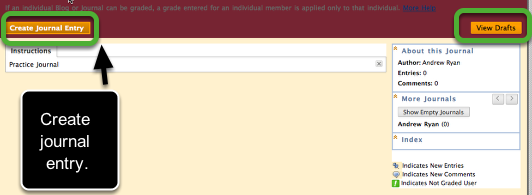
Remember you will have to submit multiple entries. Each time you access the Journal, you will create a new entry. You may have to make multiple entries a week.
You can SAVE entries as DRAFT which can be completed at a later time. You can access your drafts in the top right part of your screen.

Creating Your First Entry

create_journal.png
Use this screen to write your entry. See the Blackboard user manual for more information on using the text editor.

Post Entry

submit.png
You can upload a file before submitting
To POST entry, click POST ENTRY.

View Your Entries

entries.png

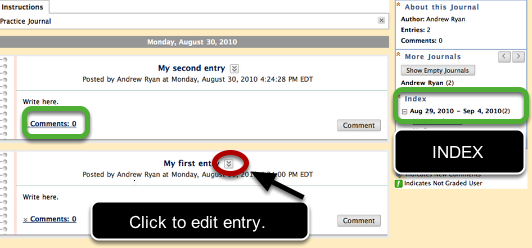
All of your submitted entries will be shown. You can edit the entries IF your instructor has made that option available.
You can view COMMENTS.
Also, the far-right has an INDEX which will show all of your entries (either weekly or monthly). The (2) means there are 2 entries for that time period.
If you have other questions, please contact the Blackboard Helpdesk at (877) 736-2585 or visit their homepage.

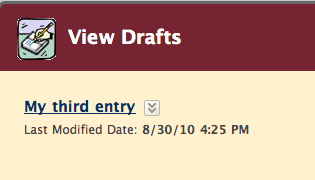
View Drafts

drafts.png
Your drafts will be listed. Your instructor DOES NOT see drafts, only the entries that were submitted.

Using Journals in Blackboard


This semester, the Center for Academic Technology is offering workshops on Blackboard and other technology related topics.  Sign up now!

Monday, August 23, 2010

Administering Wikis

In addition to blogs, Blackboard also introduced Wikis (huh, what’s a wiki?) for classroom use.  For more information on wikis, check out Educause’s “7 Things You should know about Collaborative Editing”.
Choose WIKI from the *Interactive Tool* option.  You can also access it from the *TOOLS* menu.
blog
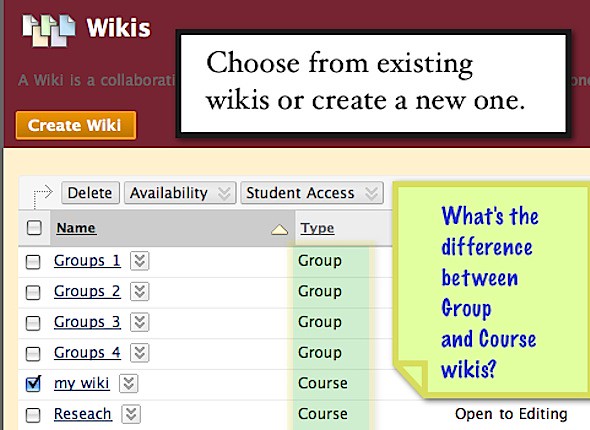
Similar to blogs, you can choose from an existing wiki, or create a new one.
w1.jpg
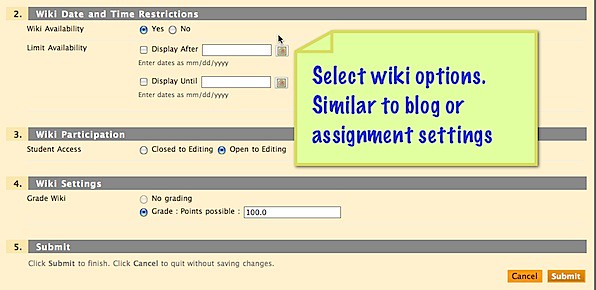
Be sure to accurately set the wiki options. 
w2.jpg
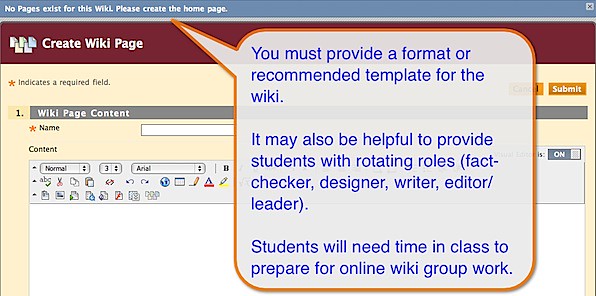
Students must be given guidance on setting up the wiki.
w4.jpg 
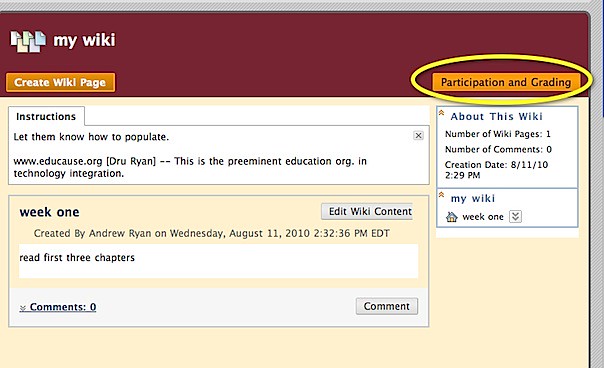
 Once entries have been made, you will see progress via the PARTICIPATION AND GRADING option.
w5.jpg
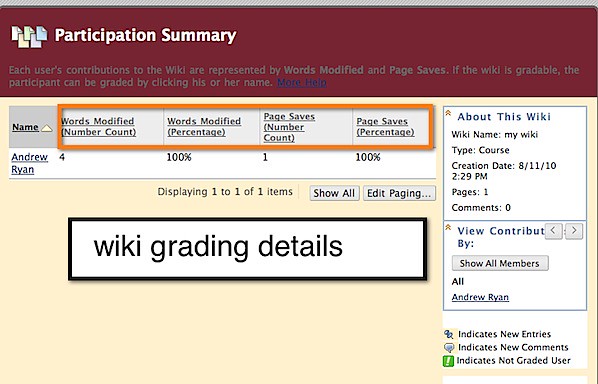
You can view each student’s effort via this dialog box. w6.jpg